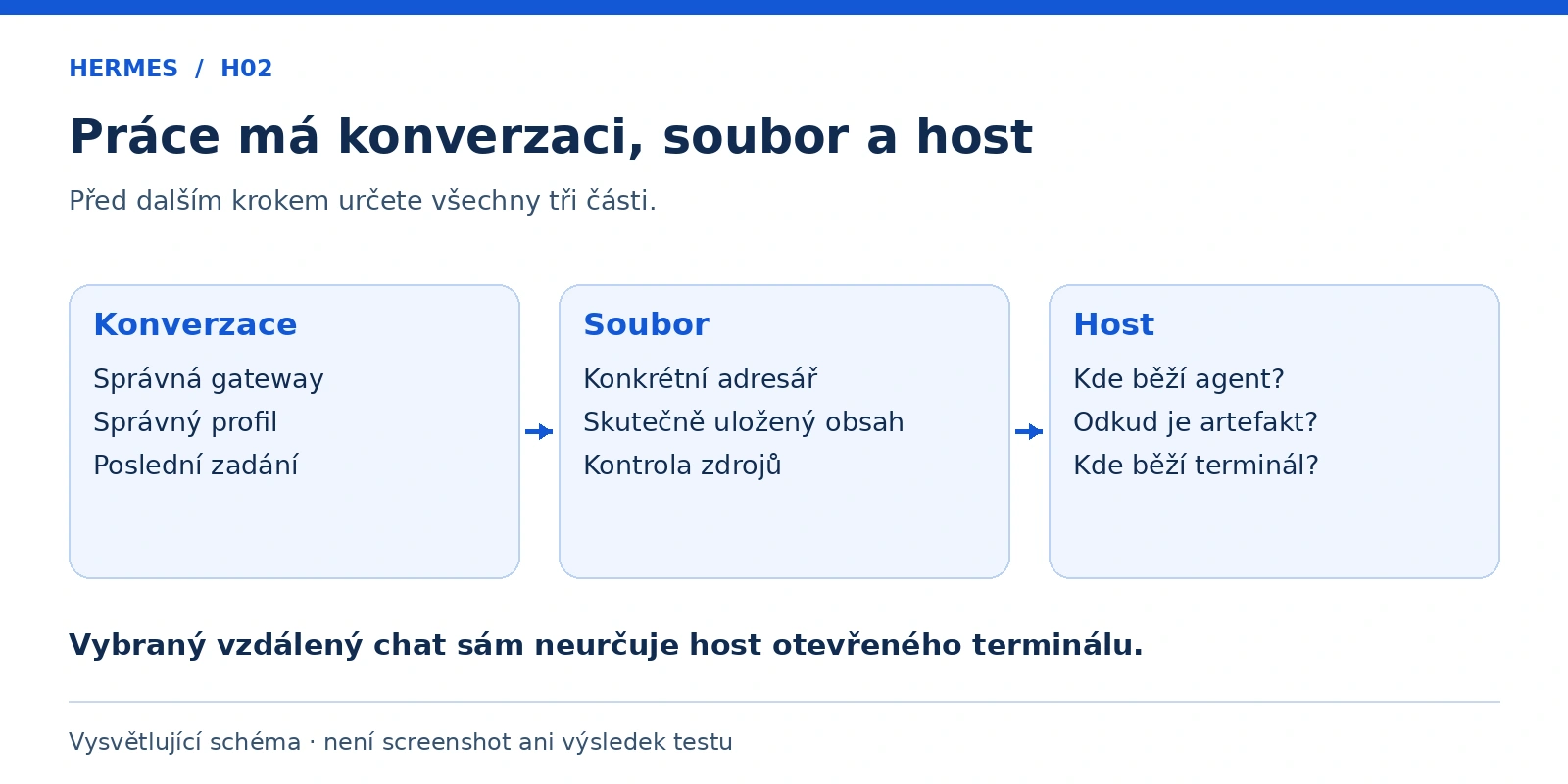

In Hermes Desktop, it is worth learning three things before exploring every setting: resuming the right conversation, supplying the right file and recognizing which computer is actually doing the work. The application window may be on your laptop while the agent works on a server. A terminal open beside the chat may not belong to the same machine.
This guide starts with a working Desktop application and a connected model. It does not revisit downloading and initial installation. Using a simple research task involving public materials, it shows how to keep track of your work and check the actual output rather than just an assurance in chat.
Scope of verification: this is a documented procedure based on official sources checked on November 19, 2026, not a new application test. The latest stable release in the GitHub release API accessed at the time was v0.23.2 from November 16. Live documentation may describe a newer state than a particular Desktop package; check client and backend versions separately. The outcomes below are criteria for your walkthrough, not results measured during writing.



Desktop, CLI, TUI, Web Dashboard and Webapp have different roles
Desktop is a native graphical application; CLI and TUI are terminal interfaces. Web Dashboard is a browser-based administration panel; its optional Chat tab embeds the terminal interface. The newer Webapp exposes the Desktop workspace through a gateway in a regular browser. Web Dashboard and Webapp are therefore not two names for the same page. The Desktop documentation explains the distinction directly.
With the same connection and profile, these interfaces use shared Hermes state. That does not mean every remote server shares data with your laptop. First identify the gateway—the running backend you are connecting to—and only then the profile and conversation. Two entries called default on different gateways are not the same agent.
Operating-system support is not the same as installer availability either. The current platform matrix lists a desktop release for macOS on Apple Silicon; no package is built for Intel macOS. Windows MSIX requires Windows 11 22H2 or later. Linux Desktop can be used, but according to the matrix its packaging is disabled in the release workflow. If you already have a working application, you do not need another installation for this guide.
A conversation, project entry and directory are not the same thing
A session is a conversation with a history. A project entry helps organize work, while a physical directory determines where files live. Do not treat a project name as proof that the agent is reading the right folder. Among other things, the documentation describes discovering local Git repositories for Projects and a file browser for the working directory; it does not promise that every project automatically creates separate storage or a security boundary.
To return to unfinished research, open the existing session under the correct gateway and profile. Read the latest task and the latest actual tool output. Only then continue: otherwise, you can easily repeat a completed step or have the agent overwrite a file you only wanted to check. Create a new session for a new task, not as a substitute for checking where the previous one ended.
- Check the gateway and profile in the sidebar. If you see multiple devices, expand the correct group of sessions.
- Open the conversation you need and compare its task with what you want to finish.
- Find the working directory in the file browser. For a remote session, you are looking for a directory on the remote host, not a similarly named folder on your laptop.
- Before another change, specify the target file and permitted operation: reading, proposing an edit or writing. Do not confuse them.
The expected output of this step is a specific trio: conversation, host and path to the working folder. If any part is unknown, it is too early to supply sensitive materials.
How to supply a file without confusing the queue with live steering
According to the documentation, Desktop supports dragging a file into chat as an attachment to the next message. For your first walkthrough, use a short text of your own without personal data—for example, a brief for researching public documents. Check both the attachment name and message text before sending. Attaching a file does not itself specify what the agent should do with it, nor prove that the whole file has been read.
A practical task might read: ‘Read the attached brief. Do not perform any writes. First summarize the requested output, state which file you loaded and flag ambiguities.’ This is a sample instruction, not a technical permission restriction. If you need to enforce read-only access, address the tool and account boundary rather than just the wording.
While the agent is working, distinguish another queued task from steering—an additional instruction to ongoing work. The queue suits a follow-up task after the current turn finishes. Steering redirects work at the next checkpoint; it does not undo an operation already performed. CLI documentation distinguishes /queue and /steer. Check how sending works in your current Desktop version using the composer controls, rather than importing habits from the terminal.
Desktop lets you edit queued messages before they are sent. Stop or Esc pauses a queue with pending items and shows it above the input. If the gateway restarts mid-turn, the documentation describes a Turn lost during restart state: the lost turn is not automatically repeated, and later items wait until it is discarded. Before sending again, check actual files and any external writes. An incomplete reply does not mean nothing happened.
Chat, file and preview: check the result alongside the conversation
A simple layout is enough to review a report: chat, file browser and preview. The documentation offers side previews, tabs and saved layouts. If the panels you need are missing, check Simple mode: technical sections may be hidden there. A hidden panel is not proof that the feature does not exist.
Open the actual output file—for example, a report from your previous research—and compare it with the task. Check at least one link, one substantive claim and the disclosed gaps in sources. For identically named files, check the directory too. Desktop retrieves remote artifact content through the original gateway and resolves paths in that session’s context; the server’s home directory is not your laptop’s home directory.
The Artifacts gallery can help you find an output again, but its suggestions are not a checklist of fulfilled task requirements. Similarly, a tool activity marked complete in green does not establish that the report is substantively correct. For an overview of other tools, see Popular AI tools; the point here is a verifiable workflow, not the length of a catalog.
The selected gateway may not host the open terminal
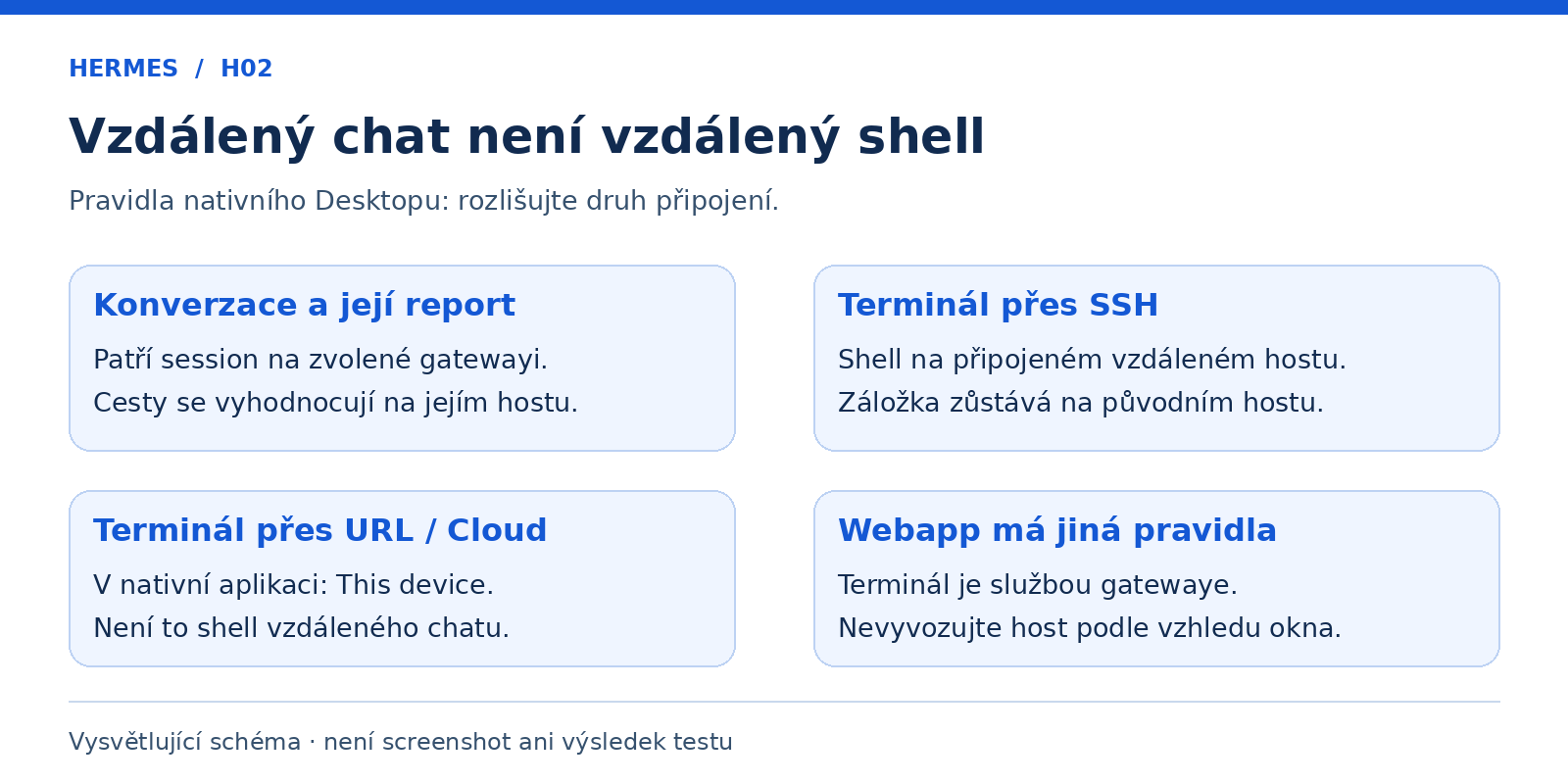
In native Desktop, open the terminal with Ctrl+`. Each terminal tab stays on the host where it was created, even if you switch elsewhere in Sessions. An SSH gateway may provide a remote shell. With a URL/token connection or Hermes Cloud, however, native application documentation says the terminal runs on This device—your own machine. Selecting a remote chat alone therefore does not guarantee a remote shell.
Before working with paths or secrets, read the terminal tab label and tooltip. If the shell should run on the server, use the appropriate SSH option, not a local tab beside a remote chat. Do not assume old terminals automatically switch when you change connections. This matters more than how many panels you have open at once.
Webapp is different: its terminal is a service of the gateway serving the page. A terminal on a saved SSH gateway uses SSH transport; a remote HTTP connection needs the corresponding host-terminal service. Do not mechanically apply native Desktop’s This device rule to Webapp. You do not need to create a new remote connection for this walkthrough; the multiple-gateway guide describes the options and their authentication.
You are finished when you can reopen the correct session, identify the host and directory holding its output, open and check that output, and independently identify the terminal host—not when you have managed to display every panel. This is not a security certification either: workspace and terminal access can mean broad access to the operating-system account.
Sources and limits of the guide
This explanation draws on continuously updated documentation for Desktop, multiple connections, chat commands and the v0.23.2 release notes. These explicitly distinguish backend updates from Desktop installer packages. The guide does not pretend to walk through a particular GUI version, create a second installation or connect accounts on the reader’s behalf.
Need a consistent way for your team to work with AI materials?
If colleagues pass files between laptops, servers and chat without a clear place to review the result, we can first define responsibilities and a safe workflow scope. Tell me how you currently hand over tasks and outputs.