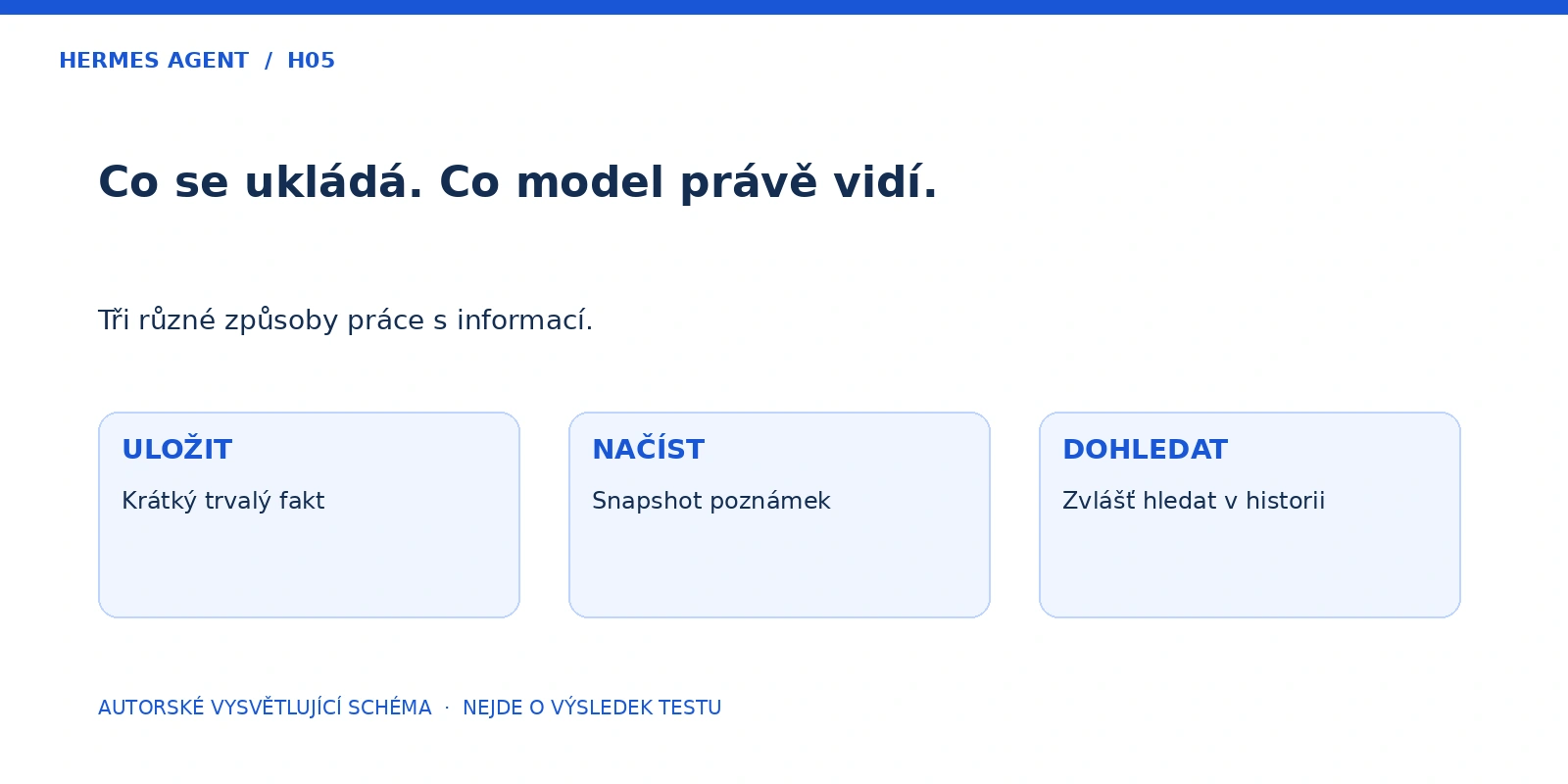

When Hermes writes “I’ll remember that,” it has not necessarily saved anything. Persistent memory must be distinguished from the current chat and the archive of older conversations. Each layer solves a different problem. Once you stop confusing them, it becomes easier to see why the agent does not know something and where to check whether the information was actually retained.
This guide is based on official documentation checked on November 19, 2026. At the time of research, GitHub listed v0.23.2, dated November 16, 2026, as the latest release; continuously updated documentation is not a frozen manual for that tag, however. Compare the steps described with your version’s help before using them. The explanation concerns an already-running Hermes installation; it is not an installation guide for Linux, macOS or Windows. The example below is a documented procedure using a fictional preference, not a newly performed two-conversation test.
Persistent memory is a short note, not a complete transcript
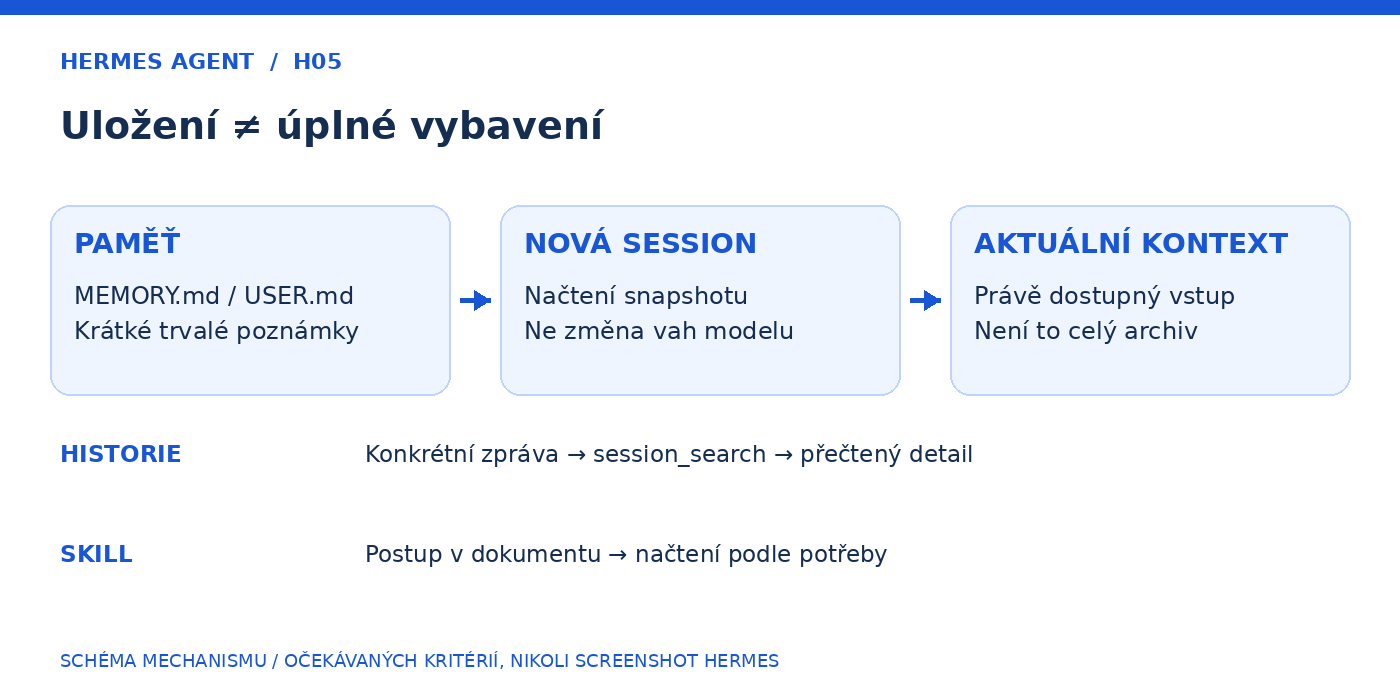
Core memory consists of the MEMORY.md and USER.md files in the active Hermes home’s memories/ directory. For the default profile, this is usually ~/.hermes/memories/. The first file contains the agent’s curated notes; the second contains information about the user and their preferences. The documented default limits are 2,200 and 1,375 characters; they can be configured differently. These limits are neither the size of the history nor the number of tokens the model can handle in one request.

This limited space is for lasting information that will be useful in future conversations, such as the response language or a stable format preference. A detailed source-checking procedure is better saved as a skill, and an ongoing assignment in a project document. Turning every completed task into a note will quickly fill memory with information unrelated to the next assignment.
Writing a note does not change the language model’s weights. Hermes presents the saved text to the model as part of its input. The model can therefore follow new information without being retrained. Similarly, the entire conversation archive is not automatically present in every response. Saving information, finding it and using it correctly are three separate things.
Why a saved change may not appear in a running chat
Official documentation describes memory injected into the system prompt at session start as a frozen snapshot — a captured state. A tool write may save to disk immediately, but it does not rewrite this initial block. The reason is prefix stability for model caching. The tool response, however, shows the live state. The information may also be available in the conversation so far; it is incorrect to say that saving it necessarily removes it from every part of the context.
For diagnostics, separate two questions: “Is the change saved?” and “Does this session have it in its initial memory?” A new session loads the current notes. For a long-running chat in a messaging app, however, restarting the computer or gateway may not mean a new conversation. You can create a natural task boundary with /new. Before doing so during ongoing work, preserve the assignment, sources and next step in a handoff document.
A documented procedure: two conversations with a fictional preference
The following prompts are fictional test inputs. They do not describe Martin’s preferences and are not evidence of a particular model’s behavior. Run the test only where you are authorized to change memory; use no passwords, client data or real sensitive information. If you have no such environment, you can simply prepare checking criteria without writing anything.
- In the first session, enter: “This is a temporary fictional test. Use the memory tool to save this sentence in user memory: For illustrative examples, the user prefers the name Project Larch.” Check the actual tool call and response, not just verbal agreement.
- Verify the exact wording in the correct profile’s
USER.md. If the write has been submitted for approval, it has not yet been applied. Do not mistake a prepared proposal for the file’s contents. - After saving, start a new session with
/newand ask for the illustrative project’s name according to the saved preference. The expected criterion is the correct information from the new snapshot, not a convincing “I remember” statement. - In the second session, change the fictional preference to “Project Linden.” Request a correction of the existing note using
memory, not the addition of a contradictory second fact. Verify the file and then a new session. - At the end, request removal of the temporary test note and verify its absence. Removing the note does not itself delete the original messages from history.
Record the result as your own observation only after performing the test: date, Hermes version, profile, model and provider used, whether a write occurred and what the new session showed. If the second chat answers correctly but you do not verify the saved file and profile, you still do not know which layer carried the information. This article claims no such observed result.
Search history for a specific statement
The session_search tool serves questions such as “What exactly did we agree back then?” Current documentation describes searching saved messages in SQLite with an FTS5 full-text index and the option to browse a retrieved session. This is not a request for the agent to guess an old conversation’s contents from a few words in memory. Availability also depends on whether the relevant record has been retained in your storage.
For the fictional test, ask: “Search history for the exact wording of the change from Project Larch to Project Linden. Give the session identifier and the message location you are using. If you cannot find the record, say so.” The expected criterion is a retrieved message and its provenance, not an invented quotation. The older preference should be marked as historical, not declared current again.
The article What RAG is and why a retrieved source is not yet a correct answer explores a similar distinction between finding evidence and drawing the right conclusion. For memory, date and validity also matter: a retrieved old statement can be authentic but no longer apply.
Corrections and approval: inspect the content before confirming
The memory tool supports adding, narrowly correcting and removing an entry. A patch correction replaces a specific passage; it is not open-ended permission to rewrite everything. A write may fail if memory is full. In that situation, shortening or merging outdated notes makes sense, rather than overwriting other valid information without review.
The memory.write_approval: true setting enables write approval. According to the documentation, foreground writes in the interactive CLI are presented directly, while other interfaces and background runs save them for review. The /memory pending command displays pending proposals. Approve the specific entry you have checked; bulk approval of unrelated changes is not a necessary part of the test. This gate concerns writes through the relevant tool; it is not general protection against arbitrary file edits.
Choose external memory only for a capability you actually lack
An external memory provider may add different retrieval, user modeling or conversation processing. Individual integrations have different storage, tools and operational requirements, however. Current core-memory documentation also allows the built-in store to be disabled independently; do not turn the general description “external memory runs alongside core memory” into an immutable rule for every configuration.
First name what the core system cannot handle: do you need to retrieve an exact historical statement, manage many changing facts or share knowledge across several assistants? Then investigate which data the integration sends, where it stores them, how they are corrected and removed, who has access and what costs arise. Adding another service will not fix a write that never happened or a search in the wrong profile. This guide requires no external provider to be enabled.
Sources and verification limits
Memory mechanism and approval: Persistent Memory. Snapshot and history diagnostics: Troubleshooting Agent Quality. Integration differences: Memory Providers. Version: release v0.23.2. Sources were checked on November 19, 2026. This is a research-led guide, not a record of a new installation, inference or completed memory test.
Want to define what AI should actually remember?
If preferences, working procedures and client material are getting mixed together between tasks, I can help define what belongs in memory and what belongs in a separate knowledge base. Tell me where you lose continuity when working with AI. Start by describing the situation, without passwords or confidential data.